You already run OptiSigns screens. The question is not whether a screen is useful; it is what goes on the one you keep having to update by hand.
Here are ten digital signage examples that are hard to do with a slide and quick to build with OptiDev, right inside the OptiSigns portal you already use. Most read from a business system you already run, and several started life as somebody's spreadsheet.
All ten start and land the same way. OptiDev is a tab in your OptiSigns portal: open it, describe the screen in plain language, and build. There is no separate login and nothing to install. When the app is ready, you push it to screens directly from OptiDev. It also lands in your asset library, so you can drop it into a playlist or put it on a schedule like everything else you run.
Two housekeeping notes. The OptiDev tab appears once your account has its first paired screen, and an account admin activates it, so if you do not see it, ask your admin. And if you are not on OptiSigns, everything here works the same at app.optidev.ai.
One thing to put in the prompt, because it is what automated digital signage rests on: tell it how often to refresh. What lands in OptiSigns is a link to the app, so the screen shows it as it is now. Set a refresh cadence, and it stays current on its own, changing because the data changed and not because someone rebuilt it.
1. A live sales board
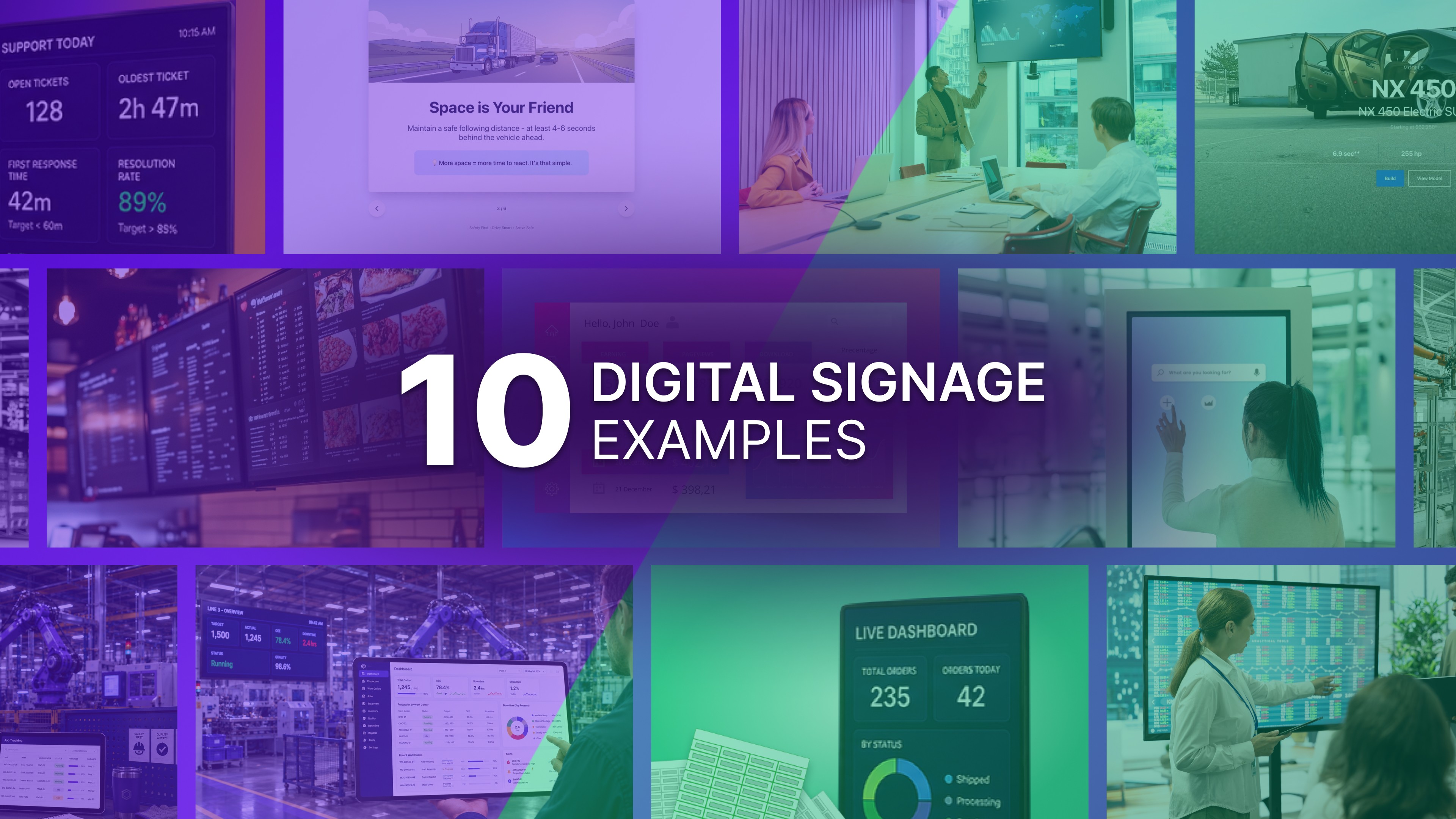
Revenue this month against target, deals closed this week, who closed them. OptiDev has starter templates for both Stripe and HubSpot, so what is on the wall stays closer to what is in the business system, without someone rebuilding the numbers every Monday. A sales team is the easiest place to justify a screen, because the people watching it change what they do. Put it where they sit, not in reception.
2. A production board for the floor
Count against the target for the shift, downtime, scrap, and first-pass yield. The floor is the one place where a number that arrives at the end of the week is worth nothing, because the shift it describes is already over. There is a Production Tracker template to start from. Assign it to the OptiSigns screen group for that plant, and it hangs above the line. This one has a post of its own: How Manufacturers Are Tracking Production in Real Time — On the Floor.
3. A lobby check-in kiosk
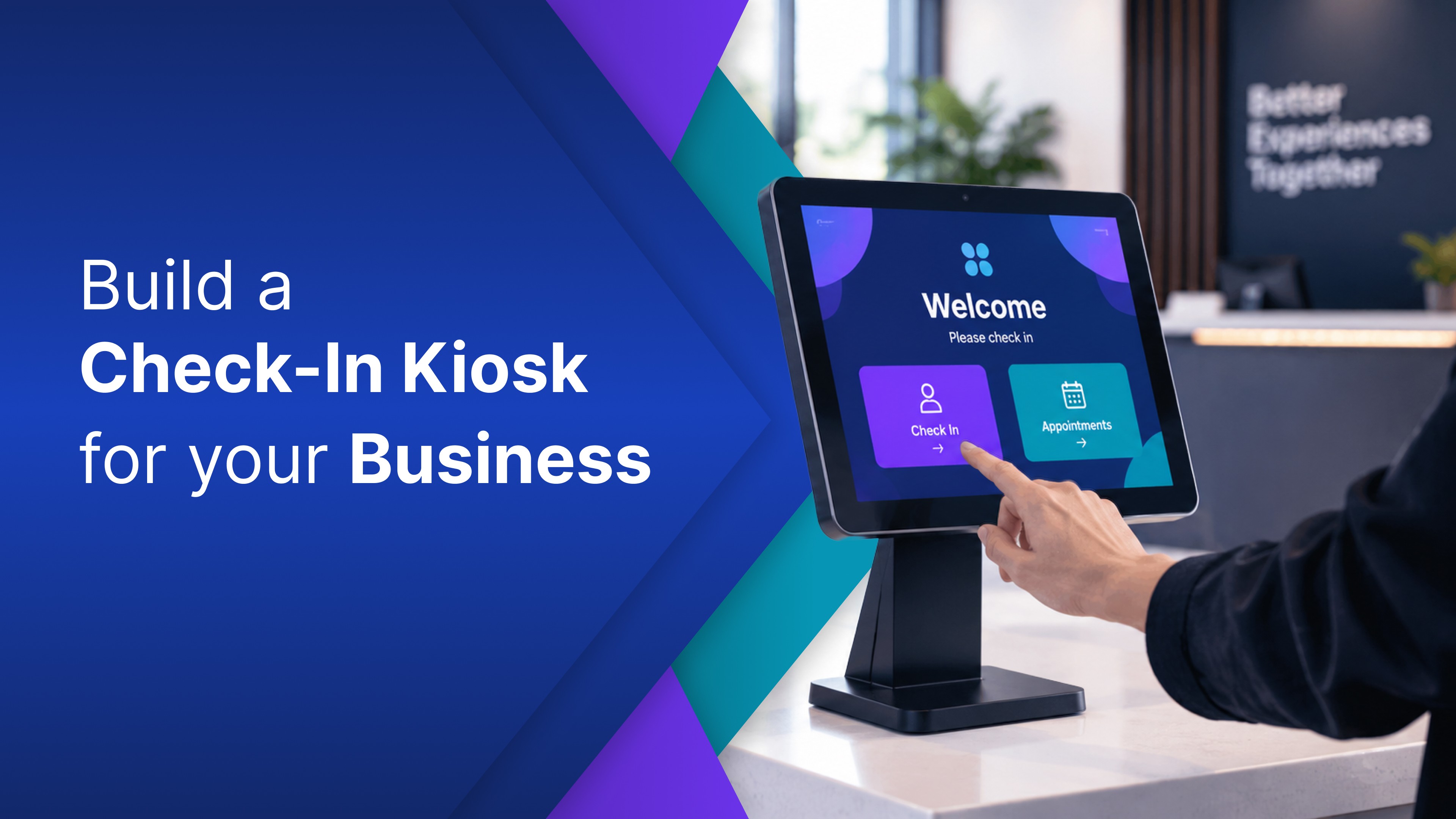
Visitors check themselves in, and the person they came to see gets notified. Staff find a room or a colleague without asking at the desk. This is the one screen on the list somebody touches, which changes what it has to be: bigger targets, fewer choices, and as little typing as possible. Start from the Building Directory template, and give the lobby screen its own OptiSigns playlist so nothing else interrupts it.
4. A menu or price board
Prices, availability, and the item you stopped selling on Tuesday. If your point of sale or inventory system has an API, the board can read from it, so the price on the screen stops depending on somebody remembering to change it. Worth doing anywhere the price moves more than once a season: cafes, service counters, parts desks, anywhere a printed board goes stale because reprinting is a chore.
5. A conference room screen
Digital signage for conference rooms is mostly a booking problem: what is in this room now, what is next, and is it free for the next twenty minutes? If your booking system exposes an API, the screen can read it, so a meeting that moves at nine moves on the wall at nine. Small screens outside each room, a larger one in the corridor for the whole floor, all fed by one build and separated in OptiSigns by screen group.
6. A support queue board
Open tickets, oldest ticket age, first response time, and how the team is tracking against target. The Zendesk template covers exactly this, so the board shows the same truth the agents see in their own queue. Support teams often have this data and rarely surface it, so the only people who know how the day is going are usually too busy to say so. Keep it to four numbers. Twelve numbers is a report, not a screen.
7. A product showcase for retail
The Product Showcase template is built for shops and needs no data source, which makes it the lowest-effort build here. Photos, specs, price, and the variants you actually stock go on a screen customers can browse. Showrooms use the same pattern for catalogs too big to put on the floor. Put it beside the product it sells, not at the entrance.
8. A safety screen for the break room
The Safety Training template is built for break room screens, and that is the honest starting point: the rotating content people are supposed to see and mostly do not. If your incident log is reachable by API, put the days since the last recordable incident on it too. Keep it plain. It should be clear, not decorative. Put it on an OptiSigns schedule so it comes up at shift change.
9. A leaderboard across every location
One board, every site, ranked on whatever the business competes on. The value is not the ranking; it is that every location sees the same numbers on the same day without a regional manager emailing a spreadsheet on Friday. Build it once and publish it to one OptiSigns screen group covering all of them, so each site gets it at the same moment. If managers start asking for their own version, that is usually a good sign.
10. The spreadsheet that is already running something
Somewhere in your business a spreadsheet is doing a job nobody assigned it: the schedule, the tracker, and the tally that three people update. Moving that into the app’s own database is usually the smallest build on this list and the one that removes the most manual work, because it retires the export step rather than adding a screen on top of it. Turn Your Spreadsheet Into a Live Dashboard With AI walks through that path.
Start with one
Ten is a starting list, not a limit. The pattern underneath all of them is the same: take the thing somebody maintains by hand, turn it into an OptiDev app, and put it on a screen. Sometimes that means content automation for digital signage: a screen reading straight from a business system. Sometimes it means replacing a spreadsheet or building a simple screen from scratch.
Pick the one OptiSigns screen in your building that somebody keeps updating by hand. Open the OptiDev tab in your portal and build that one. It lands in your asset library and plays like any other asset, on the screens, playlists, and schedules you already use.